

Click the "Accept Invite" button in the email.

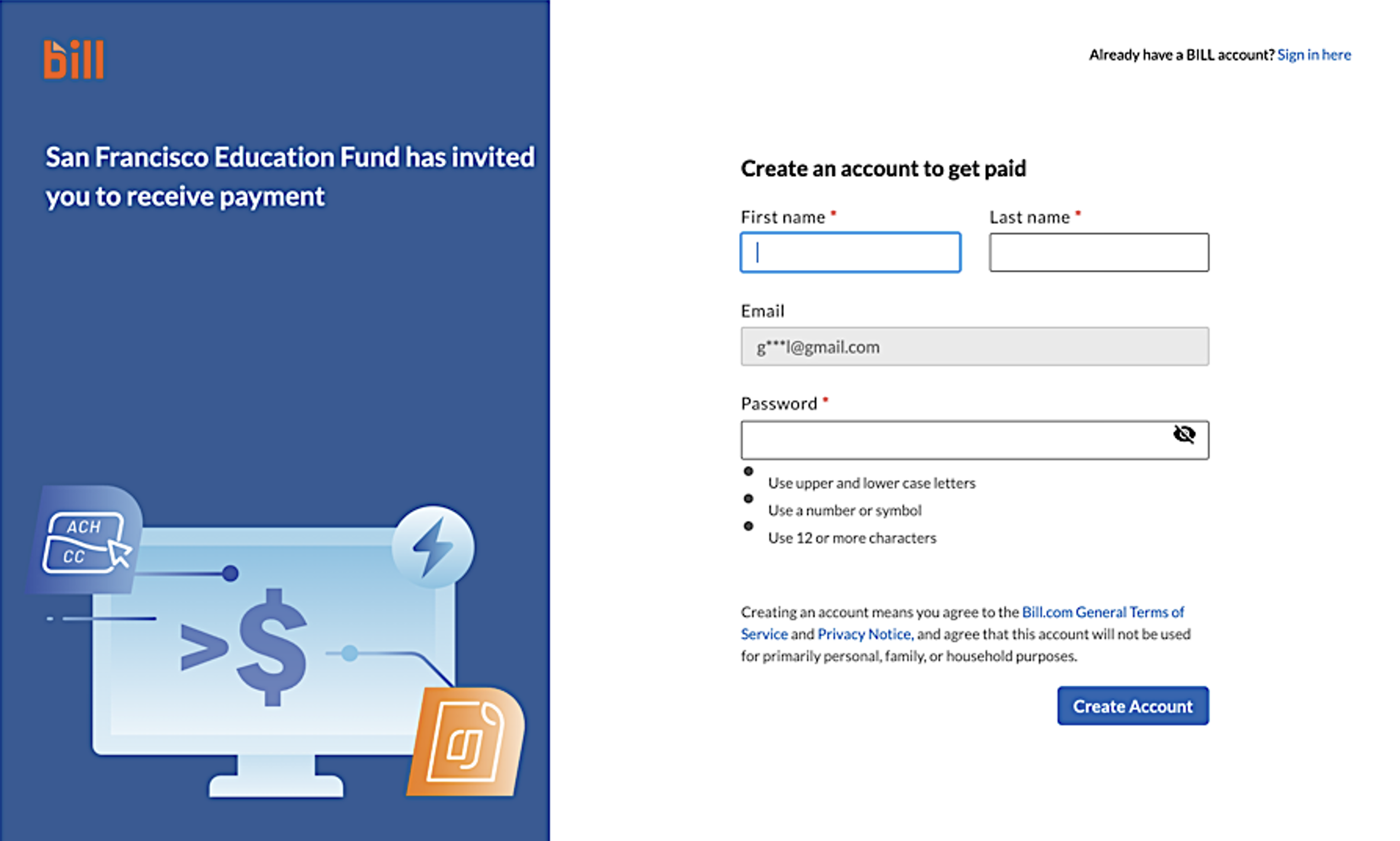
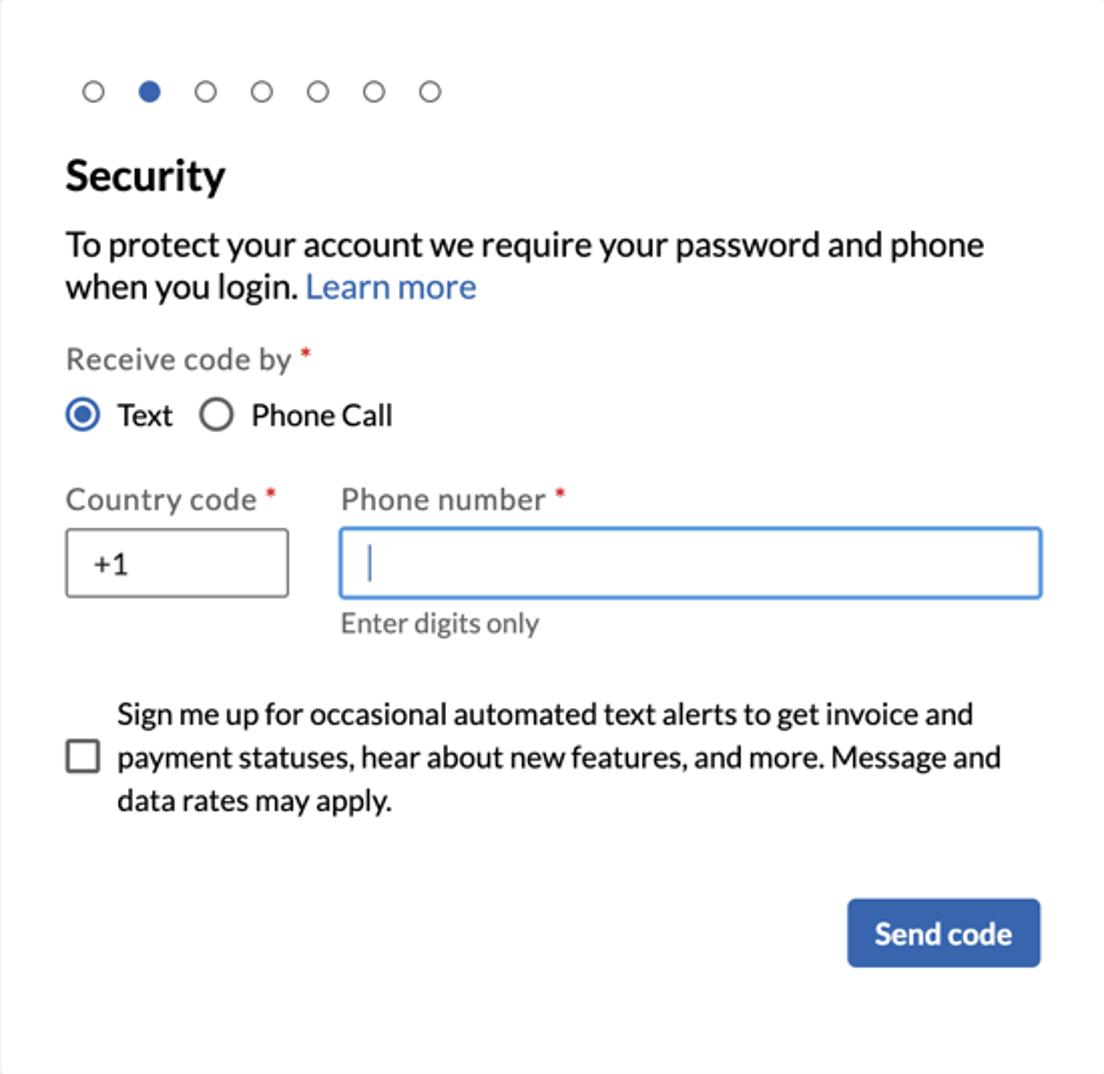
You will be prompted to enter your mobile phone number to set up 2-factor authentication.
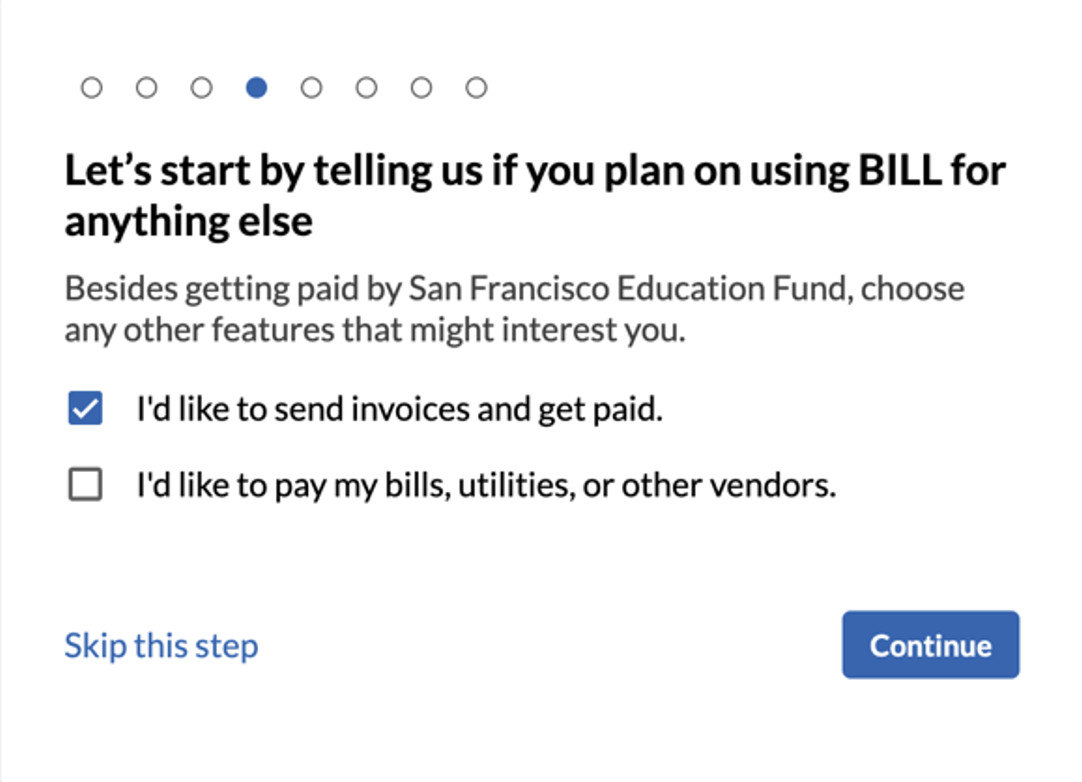
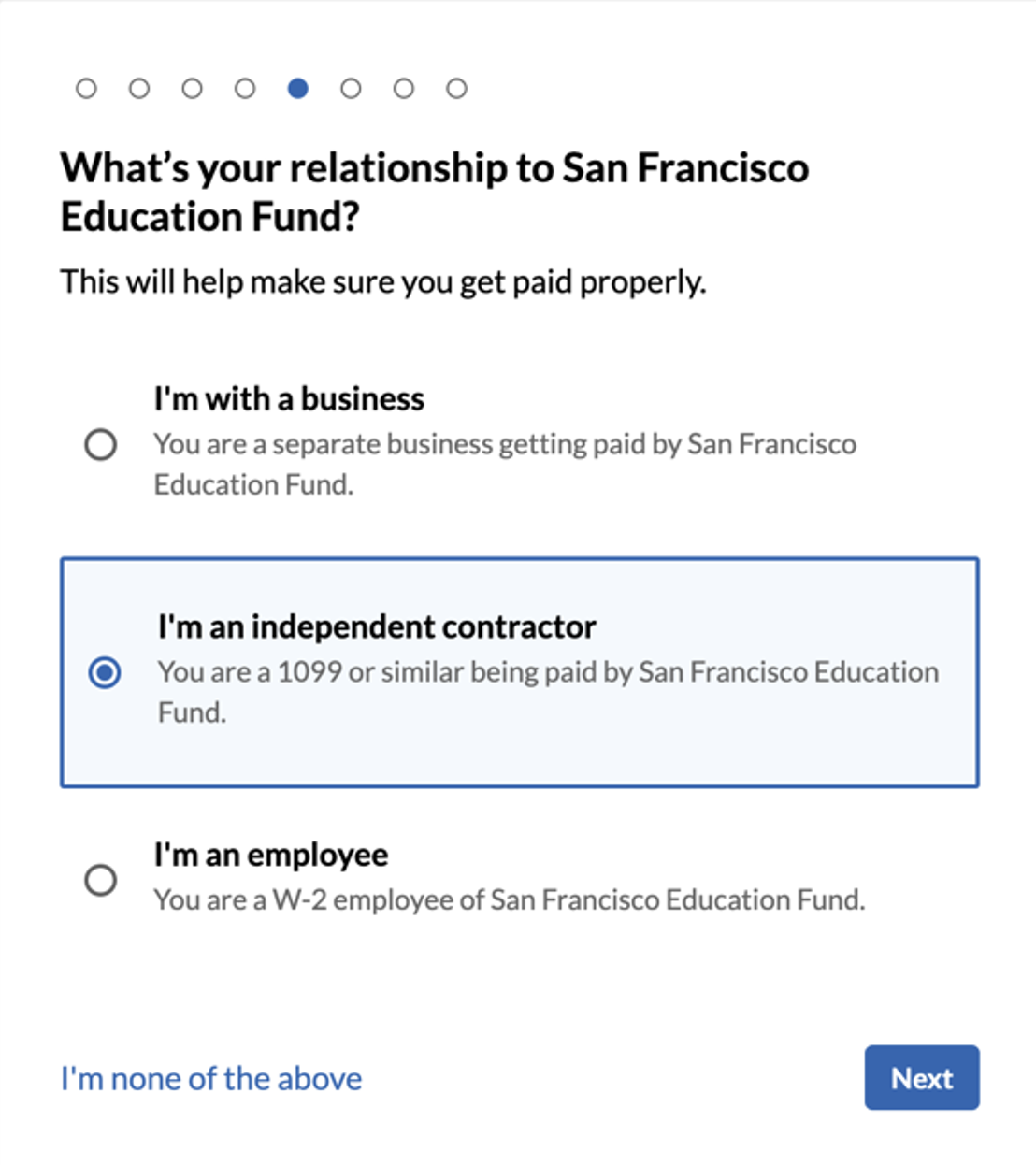
You'll be asked, "What is your relationship to San Francisco Education Fund?" Please select "I'm an independent contractor"
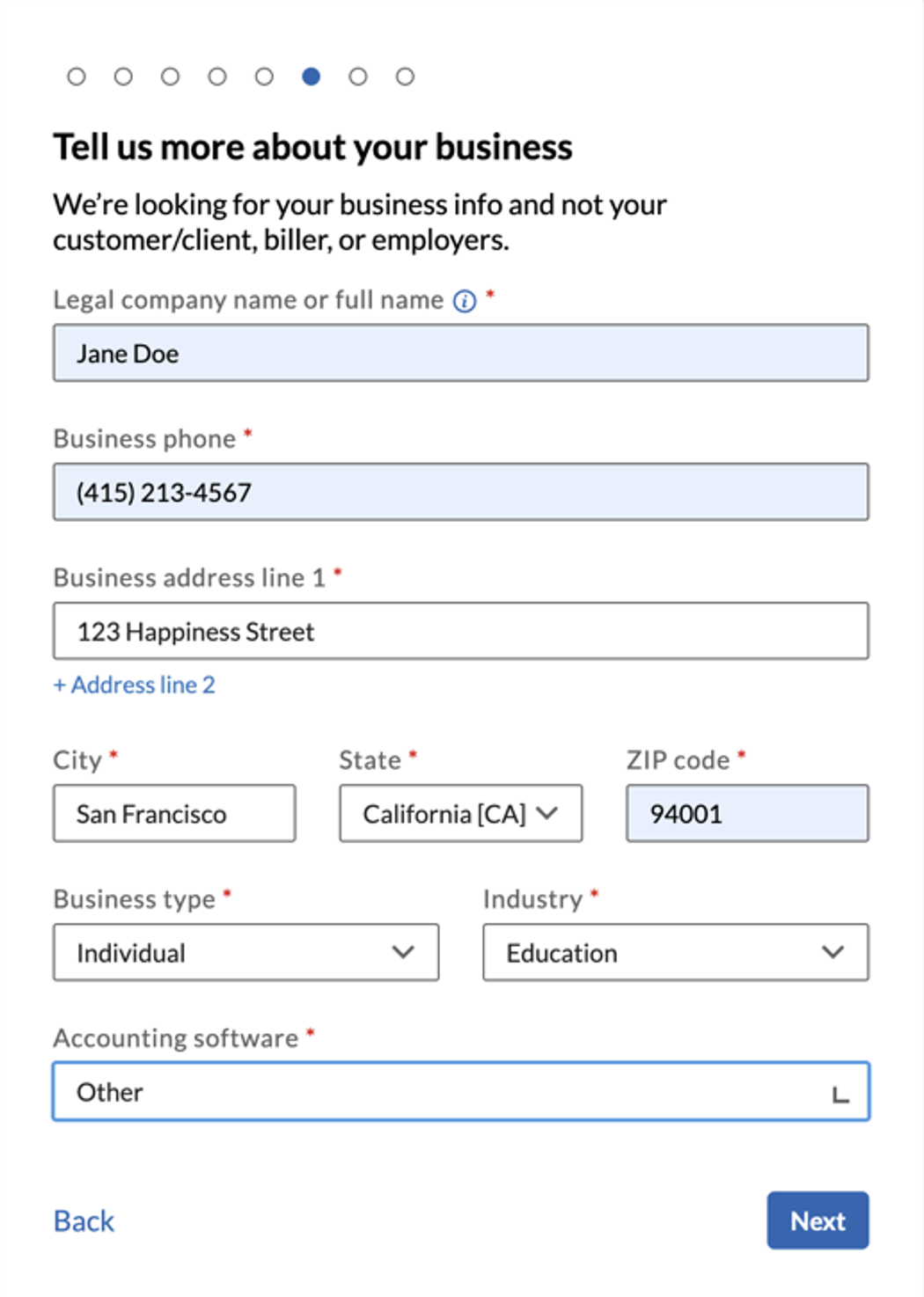
Fill out the section labeled "Tell us more about your business"
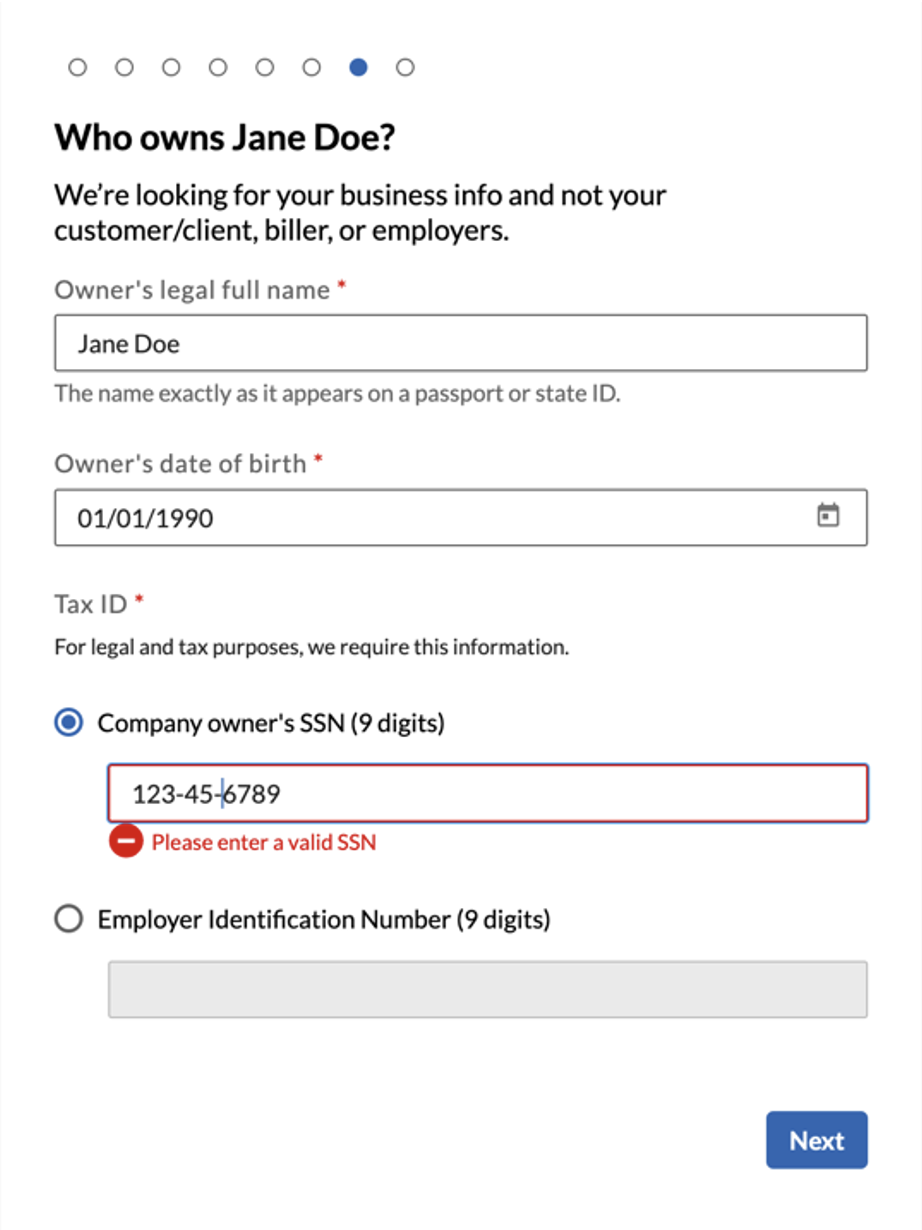
On the next screen, titled “Who owns {Your Full Name}? Enter your Legal Full Name, your Date of Birth, and your Social Security number
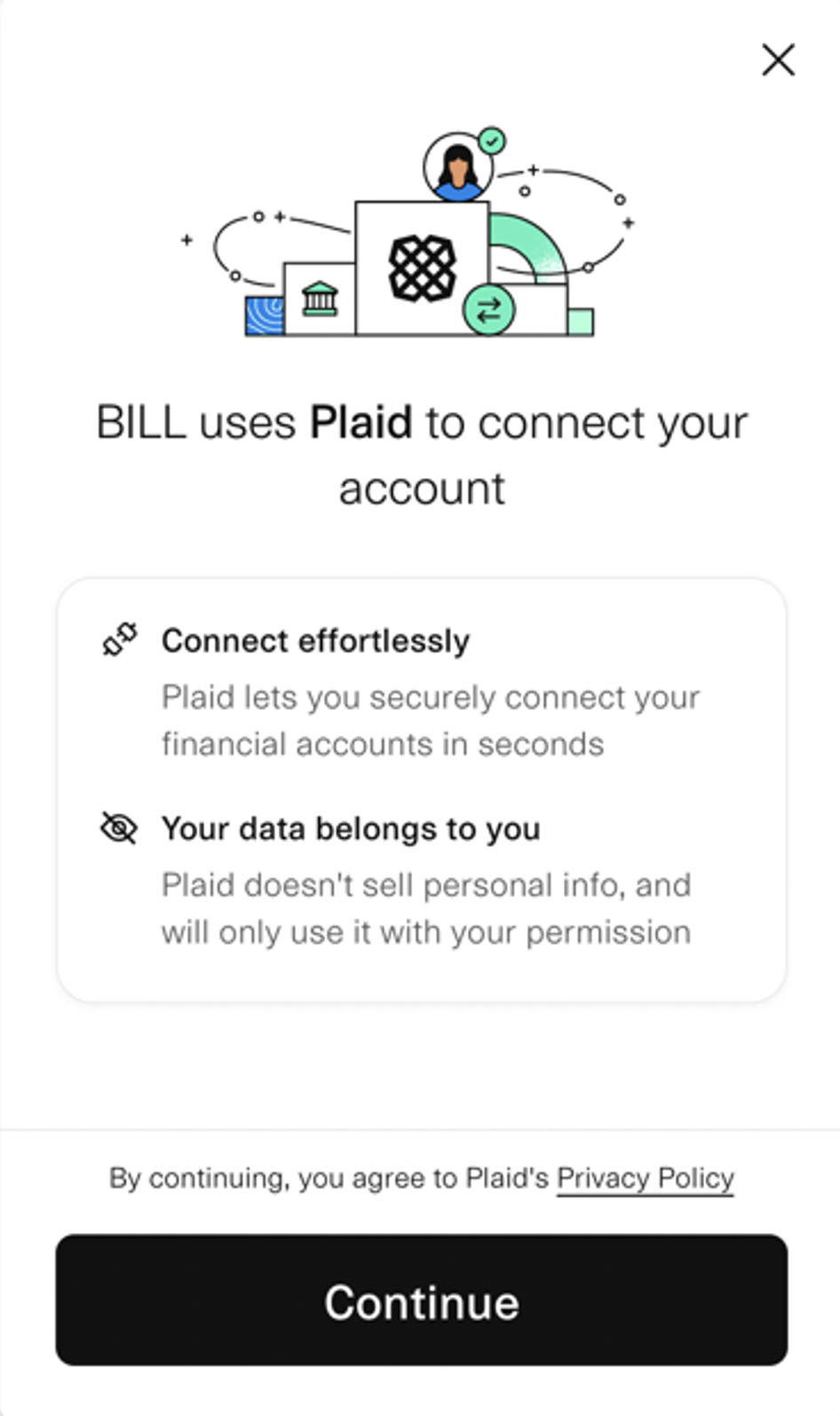
Once you click “Next,” you will be taken to the Plaid screen (see below). Click the “Continue” button.
Enter your phone number and click the “Continue” button.
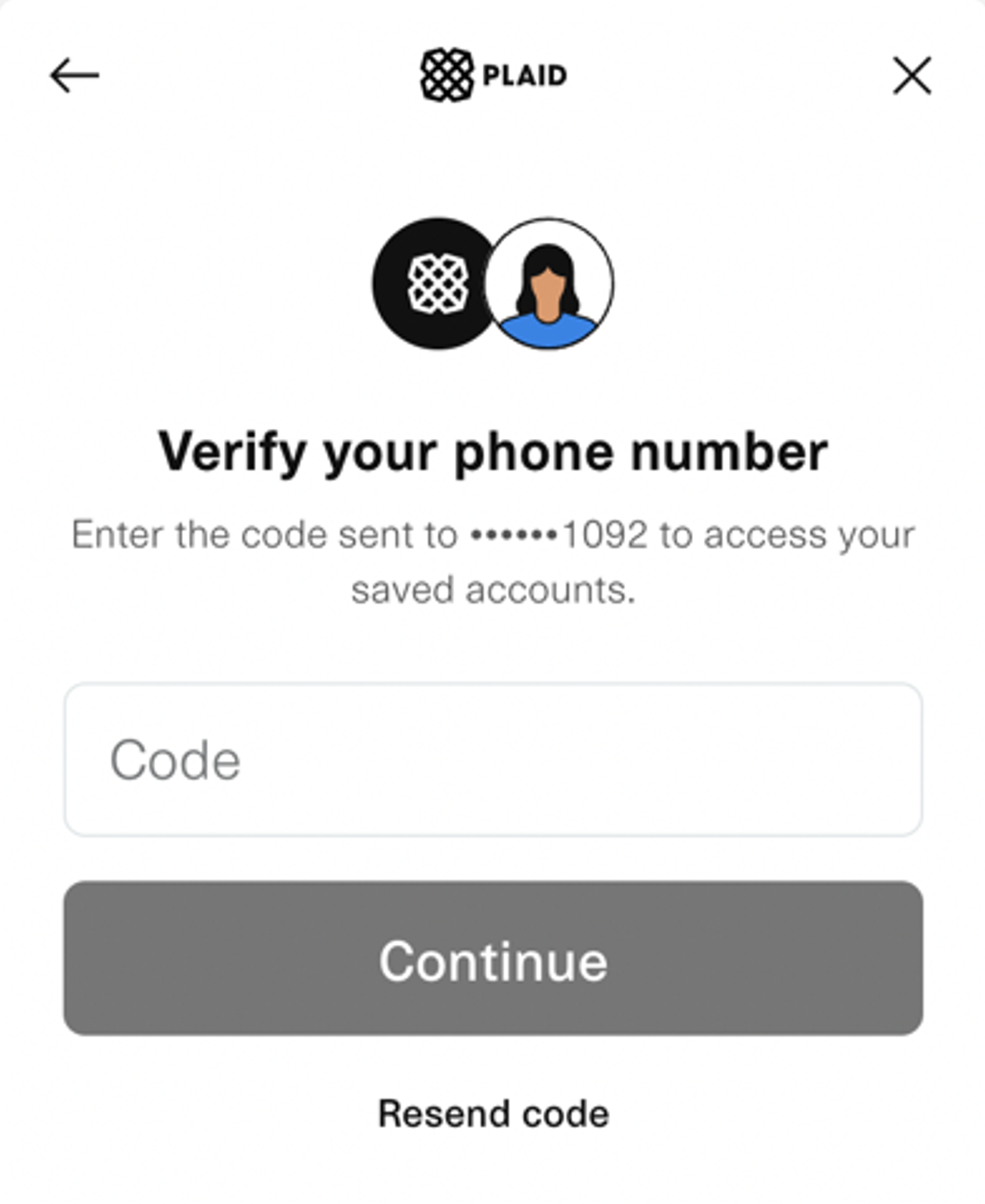
A code will be sent via text to your mobile phone. Enter your code to proceed.
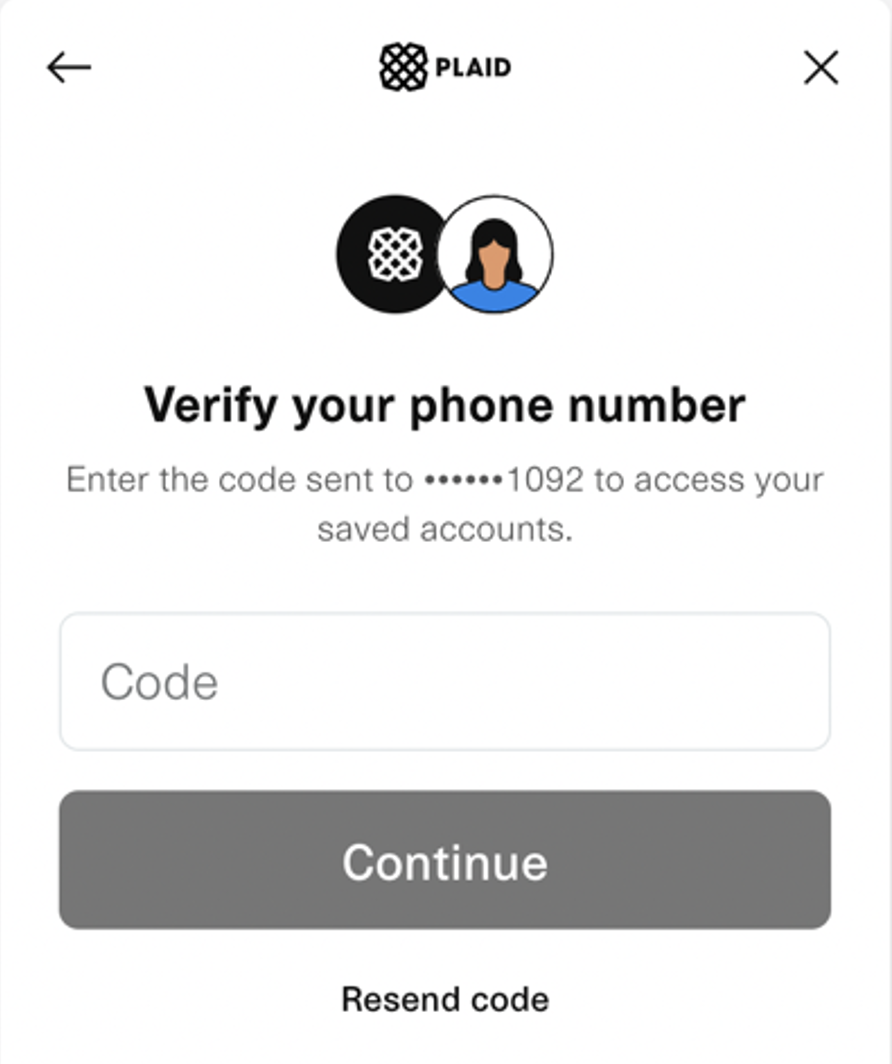
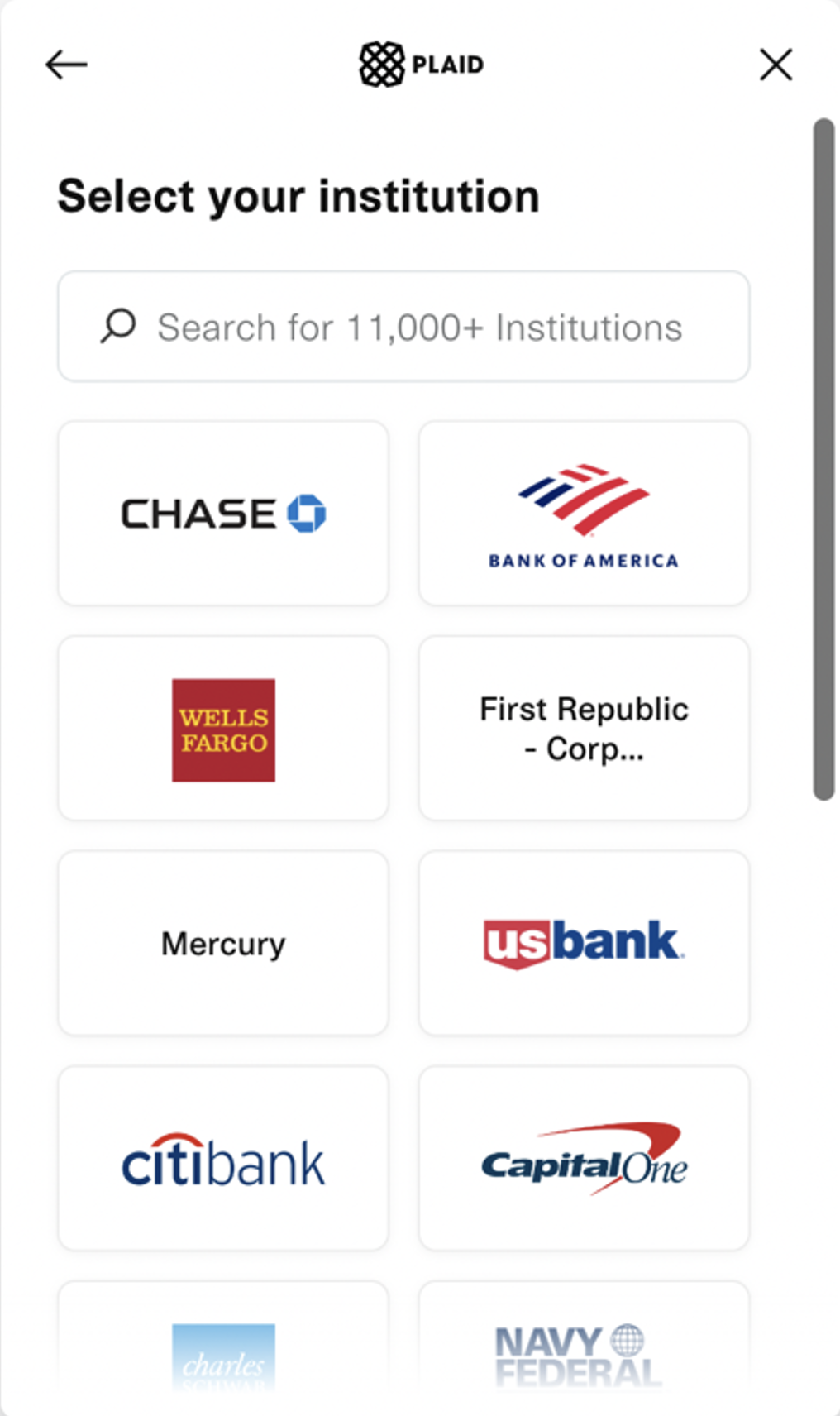
On the following screen, you will search your bank institution by typing in your bank’s name.
Once logged into your online bank account, you will be asked to select which account you want your funds to be deposited to. You may choose any of your active accounts. As soon as you have, click “Authorize Access” button and you will be brought back to the bill.com page and you will see a pop-window (see below)
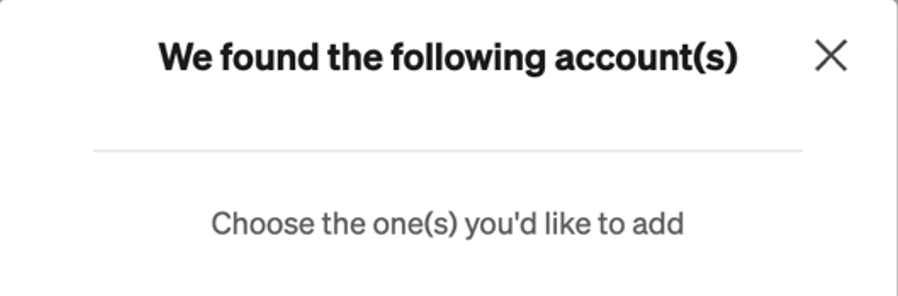
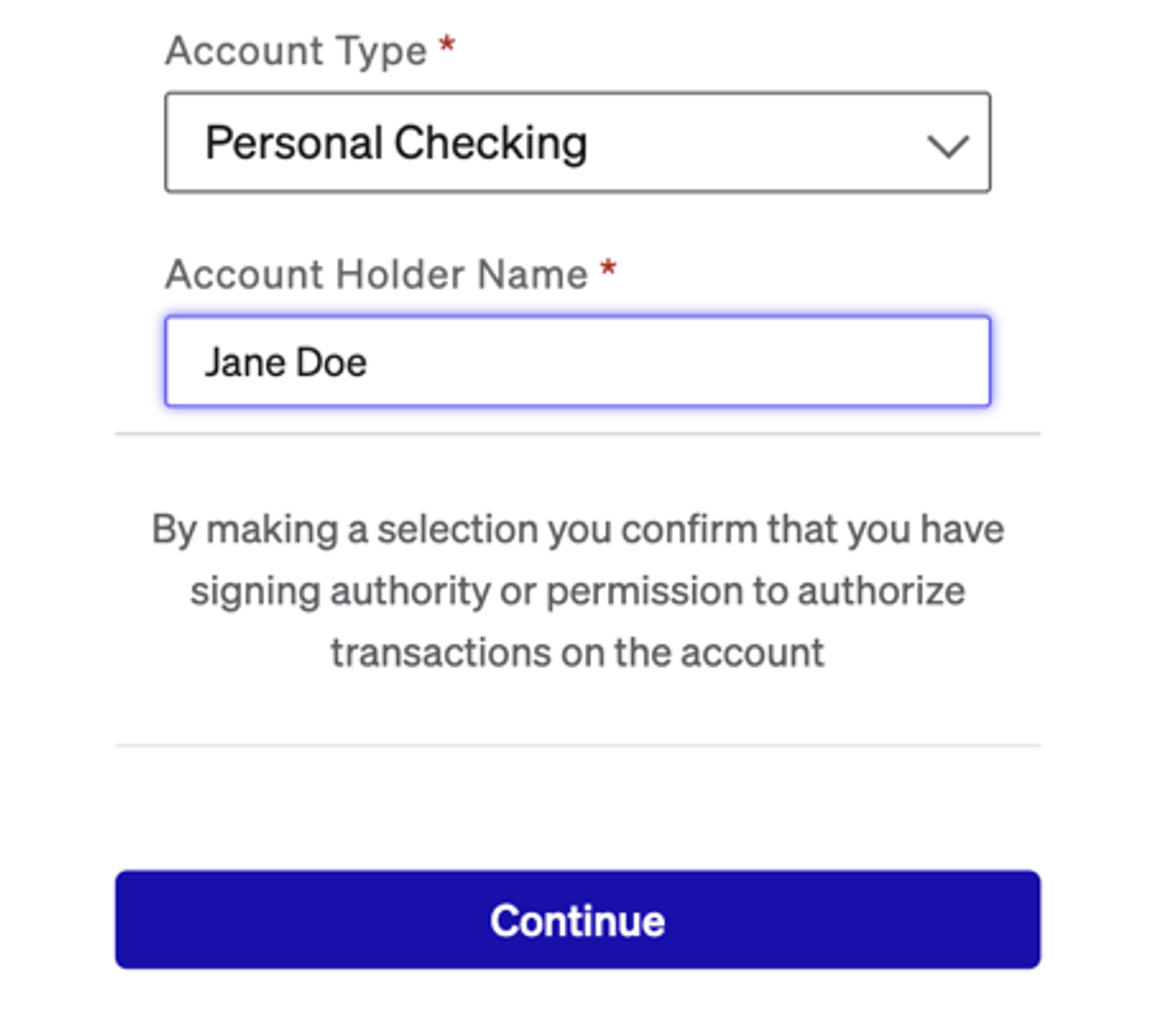
You should see the account you selected from your online banking screen already listed. Check the box next to that account. Just below that you will see a drop-down menu asking you to select your “Account type” and the Account Holder Name (Hint: Your name should match exactly as it appears on your Bank Statement). Please pick whichever choice(s) apply to you and then click “Continue” button.
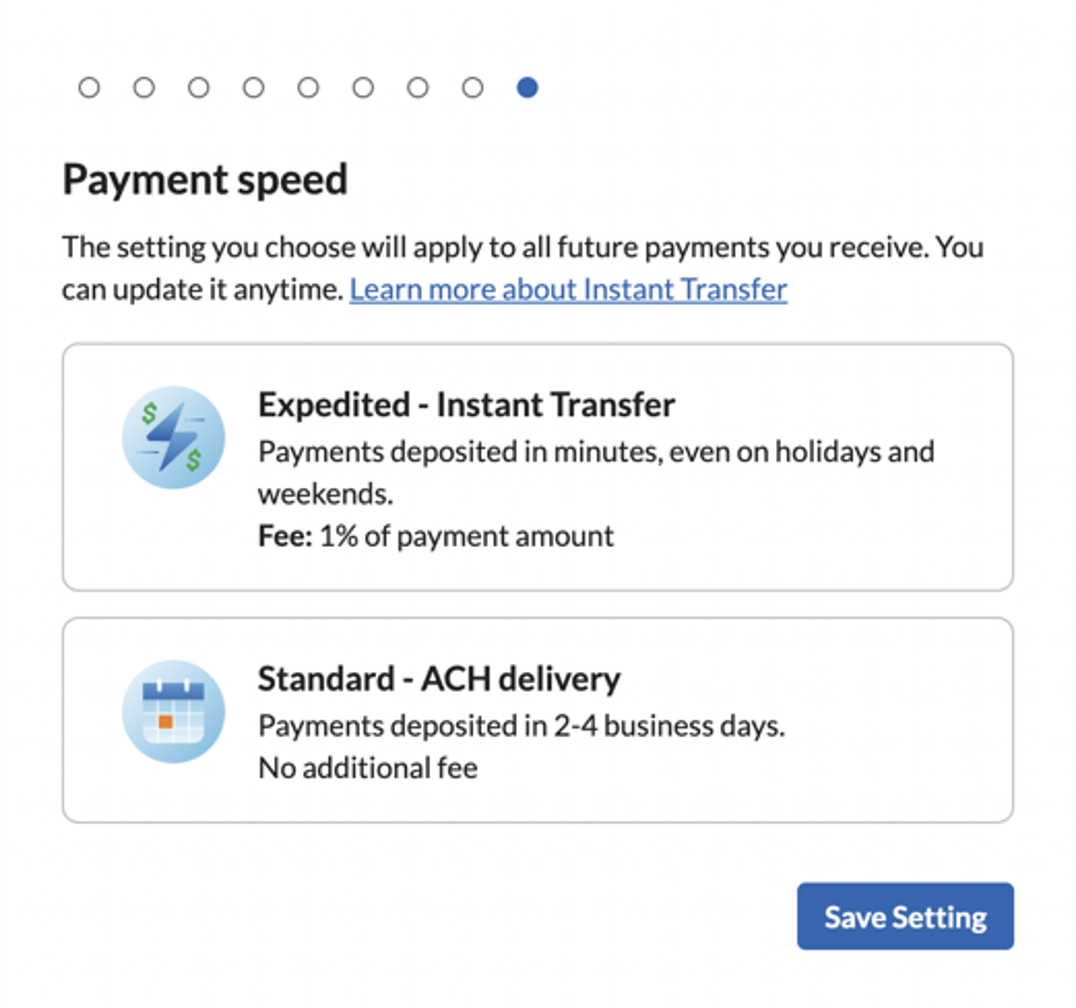
On the next screen you will be asked to choose your preferred payment speed. Select an option, and you're all set!
Please accept the Bill.com invite within 48 hours of receiving it to set up e-deposit.